Text console and keyboard
1. Introduction
Libnds provides a basic implementation of a text console and a keyboard that you can use in your applications. By default, they are loaded to the sub 2D engine, and they can be used together to make simple text-based applications:

They are very flexible. They can be loaded to the main 2D engine as well, and you’re allowed to define your own graphics. You can have multiple consoles that affect different parts of the screen (or different screens). You can even define your own behaviour for the console and keyboard, to some extent.
2. Text console
2.1 Basic usage
The easiest way to use the text console is to call consoleDemoInit(). This
will initialize the console right away without any additional manual setup.
However, that means that it needs to setup the 2D hardware internally, so it’s a
good idea to know what it does. If not, you may change some important setting
and the console will stop working:
- Set video mode 0 in the sub engine.
- Map VRAM C as background VRAM.
- Set the screen brightness to the default one.
- Initialize the console with the default font in the default tileset and map slots.
If you want to use the console while doing other things in the same screen, you
should use consoleInit() instead and provide your own settings:
PrintConsole *consoleInit(PrintConsole *console,
                          int layer,
                          BgType type, BgSize size,
                          int mapBase, int tileBase,
                          bool mainDisplay, bool loadGraphics);
Let’s see what each argument does:
consolelets you define the console struct to be initialized. If you useNULLthe function will initialize the last console to be selected withconsoleSelect()(or the default console if you haven’t selected any console yourself). We will see this in more detail later.layeris just the background layer where the console is displayed.typeandsizeare values of theBgTypeandBgSizeenums. You can check the chapter about backgrouds to know more about it. Normally you will useBgType_Text4bpporBgType_Text8bppwithBgSize_T_256x256.mapBaseandtileBaseare the tile and map bases to use for the background used by the console.mainDisplaycan be set totrueto display the console on the main screen, orfalseto display it on the sub screen.loadGraphicscan be set totrueto load the default libnds graphics orfalseif you have already loaded your own graphics. If you use the default graphics, settypetoBgType_Text4bppandsizetoBgSize_T_256x256.
As soon as the console is initialized you can start printing text with standard
C functions like printf(), putc(), or using things like cout in C++. Also,
note that you can call consolePrintChar() to print a single char without
bringing it all the standard library code. You can clear the screen by calling
consoleClear().
You can freely move the cursor around the screen by using functions
consoleSetCursor() and consoleAddToCursor(). You can also get the position
of the cursor by using consoleGetCursor().
You can also change the color of the cursor to a set of predefined colors in the
ConsoleColor enum. You can use consoleSetColor() for this. For example, the
following code will set the color of the current console to green:
consoleSetColor(NULL, CONSOLE_GREEN);Note that this will only work with the default text font. We will see how to support multiple colors with custom fonts later.
2.2 Text consoles in both screens
Now that we know how to initialize custom text consoles, let’s see how to use display a different text console in each screen:
int main(int argc, char **argv)
{
    // Storage for each console
    PrintConsole topScreen;
    PrintConsole bottomScreen;

    // Initialize a video mode that can display text backgrounds in both screens
    videoSetMode(MODE_0_2D);
    videoSetModeSub(MODE_0_2D);

    // Assign some VRAM to be used for main engine and sub engine backgrounds
    vramSetBankA(VRAM_A_MAIN_BG);
    vramSetBankC(VRAM_C_SUB_BG);

    // Initialize both consoles in layer 3 of each screen. Load the graphics.
    consoleInit(&topScreen, 3, BgType_Text4bpp, BgSize_T_256x256, 31, 0, true, true);
    consoleInit(&bottomScreen, 3, BgType_Text4bpp, BgSize_T_256x256, 31, 0, false, true);

    // Select the bottom screen console to start writing to it
    consoleSelect(&bottomScreen);
    printf("Printing on the bottom screen\n");

    // Select the top screen console to start writing to it
    consoleSelect(&topScreen);
    printf("Printing on the top screen\n");

    while (1)
        swiWaitForVBlank();
}PrintConsole structs need to remain valid while you’re using the console.
You may want to make them global variables by defining them outside of main()
in your own application.You can check the code of the example here:
examples/console/both_screens

2.3 Using console windows
By default, console instances use all the space available on the screen to print
text. If you want to restrict the area where a specific console can print, you
can use consoleSetWindow(). You can even have multiple console instances
printing to different parts of the same screen.

You can check the code of the example here:
examples/console/console_windows
The important part is this one:
PrintConsole bottomScreen1;
PrintConsole bottomScreen2;

consoleInit(&bottomScreen1, 3, BgType_Text4bpp, BgSize_T_256x256,
            31, 0, false, true);
bottomScreen2 = bottomScreen1;

consoleSetWindow(&bottomScreen1, 2, 3,  // Top-left corner
                                 8, 8); // Size
consoleSetWindow(&bottomScreen2, 15, 8,
                                 10, 5);
We need to initialize one PrintConsole struct correctly, and then we can just
copy it as many times as we want if we want to create new console windows in the
same screen. This way the internal settings like background layer, map slot,
tileset slot, etc, are preserved, but you can change the window dimensions.
2.4 ANSI console
The text console supports ANSI escape sequences. They are special strings
that can be sent to printf() and have special effects on the console. For
example, printf("\x1b[2J"); will clear the console.
Libnds doesn’t support all escape sequences, you can check the documentation here to see which ones are supported.
In general, libnds supports setting the position of the cursor (you can even save the current cursor screen, move it, then restore the previous position), clearing the screen, and changing the color of the text.
A list of all ANSI escape sequences is available here.
Most things you can do with ANSI sequences in libnds can also be done with other functions. ANSI sequences aren’t very readable, so you may prefer to use the functions provided by libnds instead.
You can see an example of using ANSI sequences here:
examples/console/ansi_console

2.5 Custom fonts
The console system of libnds lets you define your own text font. This font can be specified in different formats. For example, the default font of libnds is a 1 bpp font that gets expanded to 4 bpp when it gets loaded.
This is an example of how to load a custom 4 bpp font:
// Size of a font character in 4 bpp mode in bytes
const size_t size_char_4bpp = (8 * 8) / 2;

ConsoleFont font_futuristic = {
    .gfx = charmap_futuristicTiles,
    .pal = charmap_futuristicPal, // Set to NULL to not load a palette
    .numColors = charmap_futuristicPalLen / 2, // Set to 0 if there's no palette
    .bpp = 4,
    .asciiOffset = 32,
    .numChars = charmap_futuristicTilesLen / size_char_4bpp,
};

int main(int argc, char *argv[])
{
    /// ...

    PrintConsole console;

    // Initialize the console with default libnds settings, but don't load
    // the default font.
    consoleInitEx(&console,
                  2,                // Background layer
                  BgType_Text4bpp,  // 4 bpp mode
                  BgSize_T_256x256, // Size of the background layer
                  1,                // Use map base 1 (they can't be shared)
                  3,                // Use tile base 3
                  0,                // Use palette index 0 (16 color palettes)
                  0,                // Start from character 0
                  false,            // Sub screen
                  false);           // Don't load graphics

    // Load the custom graphics
    consoleSetFont(&console, &font_futuristic);

    /// ...
}
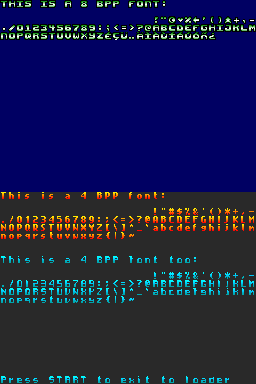
You can load multiple text fonts to be used by different consoles. Sometimes you can even share one tileset slot for two different fonts if they are small enough.
You can see an example of how to load multiple text fonts, including loading
multiple fonts in one screen and sharing a tileset slot:
examples/console/custom_font
This other example shows how to use an extended affine background instead of a
text background. This system lets you scale and rotate the layer that holds your
text:
examples/console/console_rotscale

The difference is the way in which the console is initialized:
PrintConsole *console = consoleInit(NULL, 3, BgType_ExRotation, BgSize_ER_256x256,
                                    31, 0,
                                    true, // Main screen
                                    false); // Don't load graphics
consoleSetColor() does is to change the palette
used when writing new text to the screen.consoleSetColor() or ANSI sequences.3. Debug console
This console doesn’t print text to the screen, but to the debug console of emulators like no$gba or melonDS.
All you have to do is to initialize the console like this:
consoleDebugInit(DebugDevice_NOCASH);After this, any text send to stderr will be sent to the debug console. For
example:
fprintf(stderr, "Debug message\n");The text gets printed to a special window in no$gba, and to the terminal in melonDS.
You can check the following example to see it in action:
examples/debug/nocash_debug
4. Keyboard
4.1 Basic usage
Libnds includes a basic keyboard that you can use for basic text input:

The keyboard included in libnds can work in two different ways:
-
You can manually initialize the keyboard, decide when to display it on the screen, manage key presses and close it manually when required.
-
You can manually initialize the keyboard and use
scanf(), which will display the keyboard, wait for the user to press “return”, and close it automatically.
The default keyboard is loaded to background layer 3 but, unlike the console, it doesn’t initialize any hardware and it requires you to setup a video mode that allows background layer 3 to have a regular tiled background. If you initialize the demo console you can initialize the demo keyboard right away and they will work together. This is very useful for porting simple PC applications, for example.
4.2 Manual keyboard handling
Initialize demo keyboard and load graphics to VRAM:
keyboardDemoInit();You can display the keyboard when you need to use it:
keyboardShow();In your game loop you need to call keyboardUpdate() every frame, but that
function requires you to call scanKeys() as well:
scanKeys();

int16_t c = keyboardUpdate();
if (c != -1)
{
    if (c == '\b')
    {
        // This is a backspace
    }
    else if (c >= 32)
    {
        // This is a character
    }
}
The keyboard returns -1 when there are no pressed keys, negative values for
special keys, and positive values for regular keys that have a valid ASCII
representation. For example, DVK_BACKSPACE has the same value as '\b', but
DVK_CTRL or DVK_LEFT doesn’t have a valid ASCII representation.
You can use the values from the Keys enum present in libnds to identify
special keys. Check the documentation
here.
When you’re done, you can hide the keyboard:
keyboardHide();Check the full code of the exampe here:
examples/keyboard/default_keyboard
4.3 Automatic scanf() keyboard handling
First, initialize the keyboard and load its graphics to VRAM, but keep the pointer to the keyboard instance:
Keyboard *kbd = keyboardDemoInit();Key presses are normally handled by the keyboard, but not printed anywhere. When
you manually handle keyboard presses it’s easy to print characters as you read
them, but you can’t do that while scanf() is running. If you want to display
key presses on the screen you can do something like this:
void on_key_pressed(int key)
{
   if (key > 0)
      printf("%c", key);
}

...

kbd->OnKeyPressed = on_key_pressed;
Once the keyboard is setup you can just call scanf() when you want to get text
from the user. It will show the keyboard, wait for the user to input a string,
and return when the user presses “return”. Note the %255s format, this
prevents scanf() from reading more than 255 characters and overflowing the
buffer.
char string[256];
string[0] = '\0';
scanf("%255s", string);You can check the full source of the example here:
examples/keyboard/stdin_input
4.4 Custom keyboards
You can create your own keyboard, but it requires a lot more manual work than in the case of a text console. For example, this is a custom keyboard based on the keyboard of libnds with a small color change:

First, create your keyboard graphics. You can use the default template as a starting point:

This template only has uppercase and lowercase layouts, but libnds also supports two other layouts (numeric keyboard layout and reduced footprint layout). You also need to provide the graphics that have to be displayed when a key is pressed.
To convert it you can use the grit settings used by the default keyboard:
-gB4 -gt -m -gzl -pe16 -gT000000-gzl, -gzh or -gzr, but not -gz!. If you want to use uncompressed data,
you need to add a placeholder compression header with -gz0. The map must be
uncompressed, and it must not have a compression header (-mz!).You also need to provide the layout of the keyboard to libnds so that the
library knows where each key is located. This is provided as an array that
contains rows of 32 elements. Each element in a row is 8 pixels wide and 16
pixels tall. This is done to allow for keys to be slightly displaced, not as a
simple square grid. However, this is only needed for the X coordinates. All keys
are assumed to be 16 pixels tall. This can be adjusted in the Keyboard struct
if you want different settings.
When you press a key, libnds detects all the tiles that form that key by checking the key map and it swaps the graphics to display the key as “pressed”.
For example, a key map for a keyboard with uppercase and lowercase layouts looks like this:
static const s16 SimpleKbdLower[] =
{
    DVK_FOLD, DVK_FOLD, NOKEY, '1', '1', '2', '2', '3', '3', '4', '4', '5', '5',
    '6', '6', '7', '7', '8', '8', '9', '9', '0', '0', '-', '-', '=', '=',
    DVK_BACKSPACE, DVK_BACKSPACE, DVK_BACKSPACE, DVK_BACKSPACE, DVK_BACKSPACE,

    DVK_TAB, DVK_TAB, DVK_TAB, DVK_TAB, 'q', 'q', 'w', 'w', 'e', 'e', 'r', 'r',
    't', 't', 'y', 'y', 'u', 'u', 'i', 'i', 'o', 'o', 'p', 'p', '[', '[', ']',
    ']', '\\', '\\', '`', '`',

    DVK_CAPS, DVK_CAPS, DVK_CAPS, DVK_CAPS, DVK_CAPS, 'a', 'a', 's', 's', 'd',
    'd', 'f', 'f', 'g', 'g', 'h', 'h', 'j', 'j', 'k', 'k', 'l', 'l', ';', ';',
    '\'', '\'', DVK_ENTER, DVK_ENTER, DVK_ENTER, DVK_ENTER, DVK_ENTER,

    DVK_SHIFT, DVK_SHIFT, DVK_SHIFT, DVK_SHIFT, DVK_SHIFT, DVK_SHIFT, 'z', 'z',
    'x', 'x', 'c', 'c', 'v', 'v', 'b', 'b', 'n', 'n', 'm', 'm', ',', ',', '.',
    '.', '/', '/', NOKEY, NOKEY, DVK_UP, DVK_UP, NOKEY, NOKEY,

    DVK_CTRL, DVK_CTRL, DVK_CTRL, DVK_CTRL, DVK_CTRL, DVK_ALT, DVK_ALT, DVK_ALT,
    DVK_ALT, DVK_SPACE, DVK_SPACE, DVK_SPACE, DVK_SPACE, DVK_SPACE, DVK_SPACE,
    DVK_SPACE, DVK_SPACE, DVK_SPACE, DVK_SPACE, DVK_SPACE, DVK_SPACE, DVK_MENU,
    DVK_MENU, DVK_MENU, DVK_MENU, DVK_MENU, DVK_LEFT, DVK_LEFT, DVK_DOWN,
    DVK_DOWN, DVK_RIGHT, DVK_RIGHT
};

static const s16 SimpleKbdUpper[] =
{
    DVK_FOLD, DVK_FOLD, NOKEY, '!', '!', '@', '@', '#', '#', '$', '$', '%', '%',
    '^', '^', '&', '&', '*', '*', '(', '(', ')', ')', '_', '_', '+', '+',
    DVK_BACKSPACE, DVK_BACKSPACE, DVK_BACKSPACE, DVK_BACKSPACE, DVK_BACKSPACE,

    DVK_TAB, DVK_TAB, DVK_TAB, DVK_TAB, 'Q', 'Q', 'W', 'W', 'E', 'E', 'R', 'R',
    'T', 'T', 'Y', 'Y', 'U', 'U', 'I', 'I', 'O', 'O', 'P', 'P', '{', '{', '}',
    '}', '|', '|', '~', '~',

    DVK_CAPS, DVK_CAPS, DVK_CAPS, DVK_CAPS, DVK_CAPS, 'A', 'A', 'S', 'S', 'D',
    'D', 'F', 'F', 'G', 'G', 'H', 'H', 'J', 'J', 'K', 'K', 'L', 'L', ':', ':',
    '"', '"', DVK_ENTER, DVK_ENTER, DVK_ENTER, DVK_ENTER, DVK_ENTER,

    DVK_SHIFT, DVK_SHIFT, DVK_SHIFT, DVK_SHIFT, DVK_SHIFT, DVK_SHIFT, 'Z', 'Z',
    'X', 'X', 'C', 'C', 'V', 'V', 'B', 'B', 'N', 'N', 'M', 'M', '<', '<', '>',
    '>', '?', '?', NOKEY, NOKEY, DVK_UP, DVK_UP, NOKEY, NOKEY,

    DVK_CTRL, DVK_CTRL, DVK_CTRL, DVK_CTRL, DVK_CTRL, DVK_ALT, DVK_ALT, DVK_ALT,
    DVK_ALT, DVK_SPACE, DVK_SPACE, DVK_SPACE, DVK_SPACE, DVK_SPACE, DVK_SPACE,
    DVK_SPACE, DVK_SPACE, DVK_SPACE, DVK_SPACE, DVK_SPACE, DVK_SPACE, DVK_MENU,
    DVK_MENU, DVK_MENU, DVK_MENU, DVK_MENU, DVK_LEFT, DVK_LEFT, DVK_DOWN,
    DVK_DOWN, DVK_RIGHT, DVK_RIGHT
};
You also need to tell libnds where to find the graphics of each layout. Check
the sample code below to see how each map data is at a different offset inside
keyboardGfxMap.
Also, you’re free to pick a different keyboard width or height than the default, but you need to adjust the layout accordingly.
static const KeyMap capsLock =
{
    .mapDataPressed = keyboardGfxMap + 32 * 20,
    .mapDataReleased = keyboardGfxMap,
    .keymap = SimpleKbdUpper,
    .width = 32, // 32 * 8 pixels
    .height = 5  // 5 * 16 pixels
};

static const KeyMap lowerCase =
{
    .mapDataPressed = keyboardGfxMap + 32 * 30,
    .mapDataReleased = keyboardGfxMap + 32 * 10,
    .keymap = SimpleKbdLower,
    .width = 32,
    .height = 5
};
When you have defined your graphics you can define the behaviour of the keyboard.
static const Keyboard customKeyboard =
{
    // Set this to 0 to make the keyboard appear/disappear right away
    .scrollSpeed = 3,

    // Size of each entry in the key layout grid
    .grid_width = 8,   // Grid width
    .grid_height = 16, // Grid height

    // Initial state of the keyboard. By setting the initial state to uppercase,
    // and marking the keyboard as shifted, the first character will be
    // uppercase and the next ones will be lowercase, like with modern
    // smartphone keyboards.
    .shifted = true,
    .state = Upper,

    .mappings = {
        &lowerCase, // keymap for lowercase
        &capsLock,  // keymap for caps lock
        0,          // keymap for numeric entry
        0           // keymap for reduced footprint
    },

    .tiles = keyboardGfxTiles,       // graphics tiles
    .tileLen = keyboardGfxTilesLen,  // graphics tiles length
    .palette = keyboardGfxPal,       // palette
    .paletteLen = keyboardGfxPalLen, // size of palette
    .tileOffset = 0,                 // tile offset

    .OnKeyPressed = NULL,            // keypress callback
    .OnKeyReleased = NULL,           // key release callback
};
You can load the keyboard like this:
keyboardInit(&customKeyboard,
             3,                // Background layer to use
             BgType_Text4bpp,  // 16 color palette format
             BgSize_T_256x512, // Background size
             20,               // Map base
             0,                // Tile base
             false,            // Display it on the sub screen
             true);            // Load graphics to VRAM
Check this example to see the full example:
examples/keyboard/custom_keyboard